How to Install a Ready-Made Build in Minecraft: Schematics for Java, Structures for MCPE
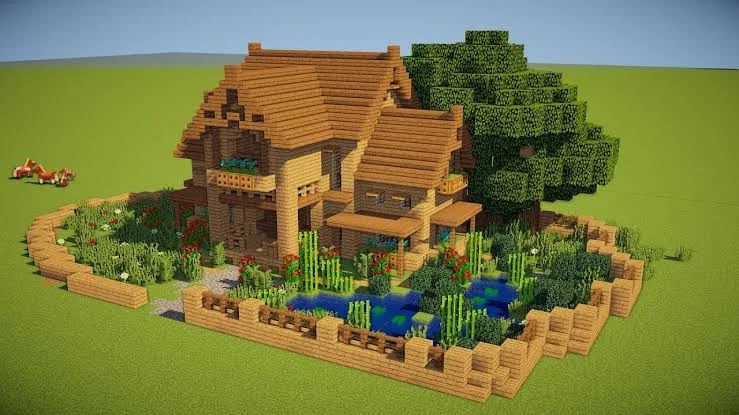
A castle you liked online takes roughly a week and a half of evenings to rebuild by hand, and that’s assuming you don’t lose count of the floors somewhere around the third one. Which is why most builds are worth transferring as a file instead of copying from screenshots.
A build file is a saved chunk of a world with every block in it, including stair rotations and chest contents. Drop it into your world and the whole building is there. On mobile you do this with structure blocks; on Java, with schematics and mods. Both are below, starting with MCPE because there’s less fuss involved.
There are four file types, and mixing them up doesn’t work — the wrong format simply won’t open:
A Java schematic won’t work on a phone no matter how you rename it. Check which edition a build is for before downloading; decent sites state it in the description.
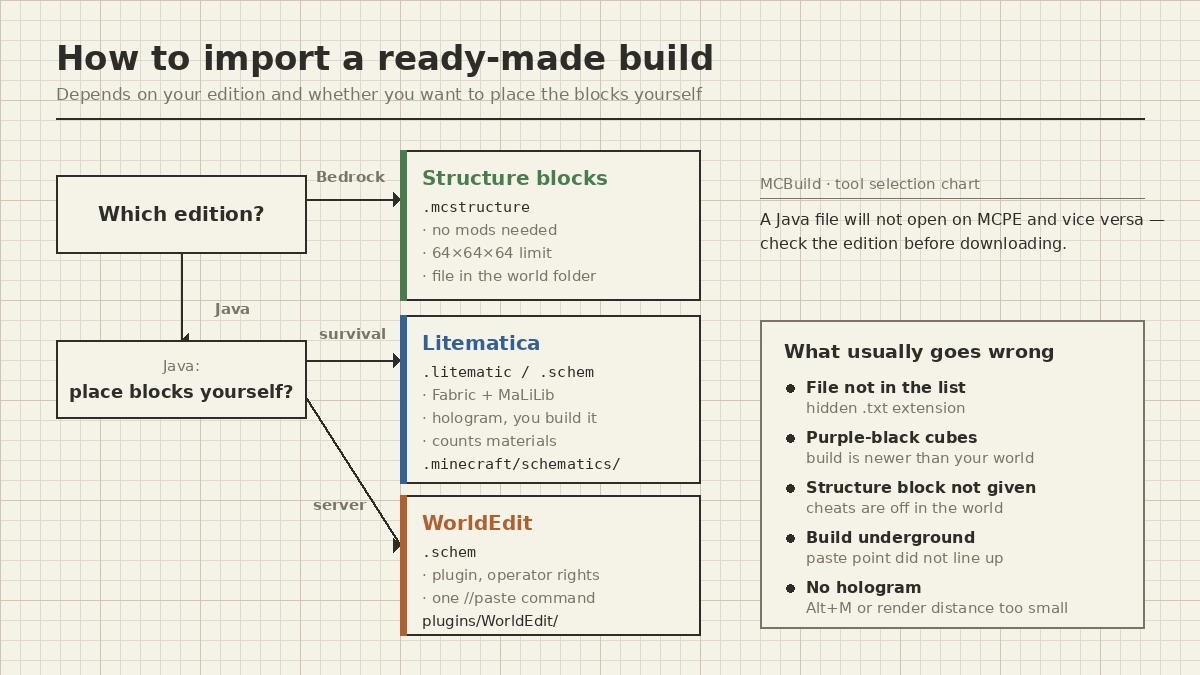
Where to go, depending on your edition and whether you want to place the blocks yourself.
No mods here, but the game has a structure block built in. It both saves a chunk of the world and pastes it back.
First enable cheats in the world settings, otherwise the block won’t be given to you even in creative. Then:
/give @s structure_block
The downloaded file goes into the world folder, at games/com.mojang/minecraftWorlds/[your world]/behavior_packs/. If the build comes as an .mcpack it’s easier — tap the file and the game sorts it out. On Android a file manager is the quickest way to that folder; on iOS, the Files app.
Place the block, tap it, switch the mode to Load, and type the structure name — exactly as the file is called, without the extension. Load shows a transparent outline you can shift on X, Y and Z. Once it sits right, hit Place.
There’s one real limitation: nothing larger than 64 blocks in any direction (48 in older versions). A house, a farm, a small tower are all fine. A castle has to be cut into pieces and joined by coordinates, which is as tedious as it sounds.
Litematica doesn’t build for you. It draws a translucent “hologram” of the build over your world, and you place the blocks yourself. Sounds like extra work, but that’s exactly why it fits survival: you still gather everything.
Two files go into .minecraft/mods/ — Litematica itself and the MaLiLib library, both matching your game version and running on Fabric. Nearly every startup crash blamed on the mod is a version mismatch between those two.
Schematics live in .minecraft/schematics/, a folder created after the first launch. Then press M, open Load Schematics, pick the file, tick Create a placement and hit Load. The hologram appears where you’re standing, which is almost never where you want it — move it from the Schematic Placements menu, where Move placement here brings the build to you.
Go straight to Configuration → Generic and turn on easyPlaceMode. It’s off by default, and with it blocks land in the correct orientation with one click, so you’re not guessing which way a stair faces.
One more thing not everyone finds: the Material List. The mod counts how many of each block the build needs and shows what’s missing from your inventory. With it the build happens in one session instead of five with trips back to the chests. It also surfaces things you’d never guess — 900 stone bricks is expected, the 64 light grey glazed terracotta in the floor pattern is not.
When you just need the building in place — a spawn, a lobby, decorations — WorldEdit does it with one command. The plugin goes into plugins/, .schem files into plugins/WorldEdit/schematics/. You’ll need operator rights.
Three commands, that’s it:
Everything reverses with //undo, several steps back if needed, so there’s nothing to be afraid of.
There are plenty of open libraries. MCBuild, for one, has Minecraft schematics sorted by category — houses, castles, farms, redstone — with a filter by game version. Pay attention to that filter: a 1.21 build opened in a 1.19 world arrives with holes where the newer blocks should be, and you’ll notice somewhere around the second floor.
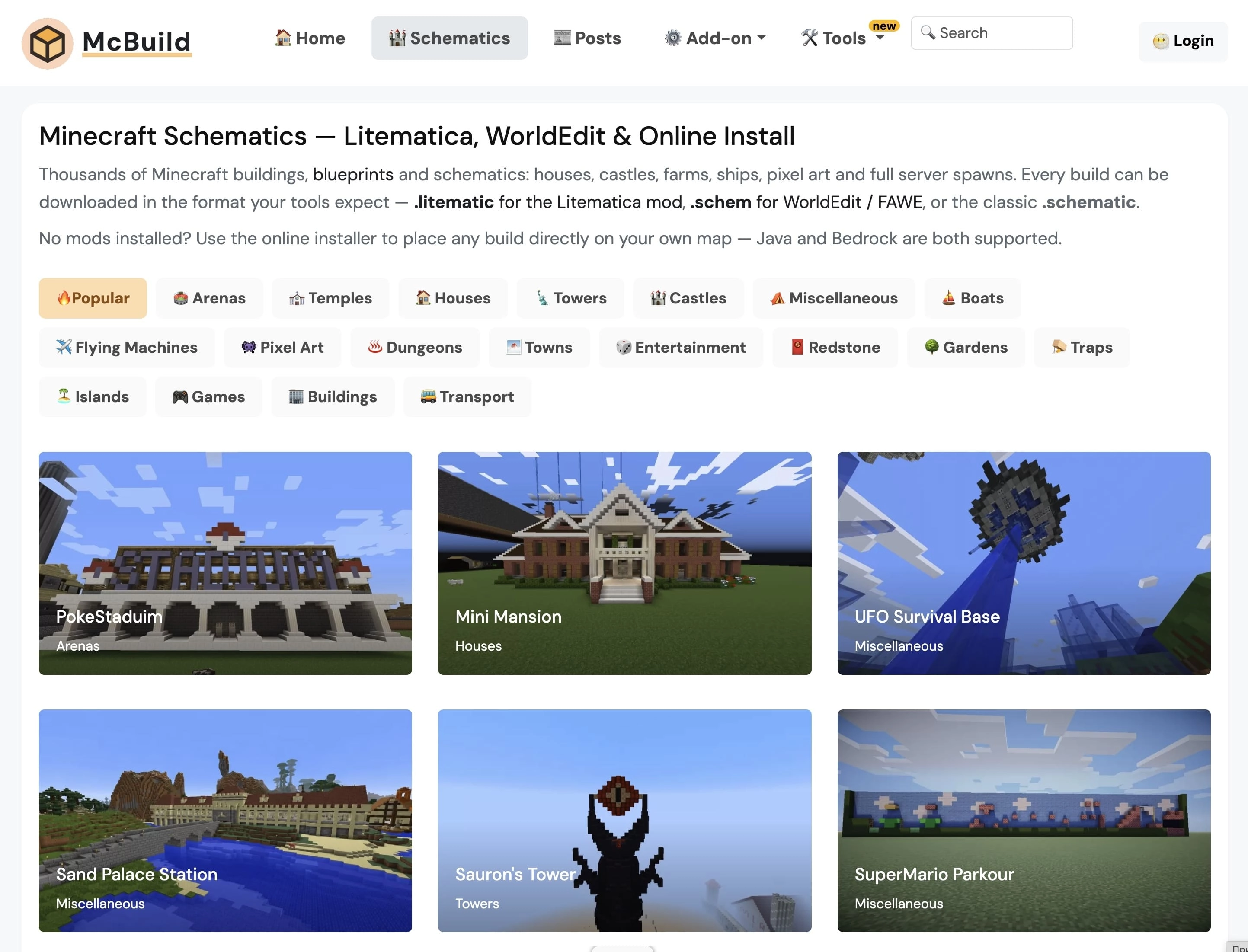
Categories in the catalogue, from houses and castles to pixel art and traps. The file format is picked at download.
The same site has Minecraft building blueprints — layer-by-layer plans with block counts. That’s the option for building by hand without mods: every layer is visible and you know what to stock up on.
One habit that saves a lot of grief: paste a build into a separate test world the first time. You’ll see straight away whether every block is there and whether the castle is three times the size of your village. More builds and collections are on MCBuild.